


TikTok GMV Max now lets you see sales by product and by creative (your ad videos) from a single dashboard page. Before this update, the main GMV Max dashboard only showed a list of your ad campaigns. If you wanted to know which products were selling best, you had to click into each campaign and then open Analytics before you could see the product-level breakdown. That made reporting slow and made it hard to see the big picture.
Creatives had a similar problem. There was a Creatives button in the left-hand menu, but it only showed reports. If you wanted to take action on a specific creative — for example, boost a video that was performing well — you couldn’t do it from there. Instead, you had to go to Campaign > Analytics > select a product in that campaign > select the video linked to that product (the one with the shopping cart) > Boost Creatives. As you can see, that was very complicated and hard to find.
The new TikTok GMV Max update solves this problem completely: Campaigns, Products and Creatives now sit as tabs right on the main dashboard. You can reach and edit your creatives much more easily, and check all your products at a glance. Let’s look at what this update makes possible.
TikTok GMV Max Dashboard Update: See Sales by Product and by Creative on One Page
- GMV Max by Product: How the Old and New TikTok Dashboards Differ
- What Can You Do in the Products Tab?
- What Can You Do in the Creatives Tab?
- How Can You Use GMV and ROI Data for Each Product and Each Creative?
- Some Shops May Not See the Products and Creatives Tabs Yet Because the Update Is Rolling Out Gradually
- Frequently Asked Questions about the TikTok GMV Max Dashboard
GMV Max by Product: How the Old and New TikTok Dashboards Differ
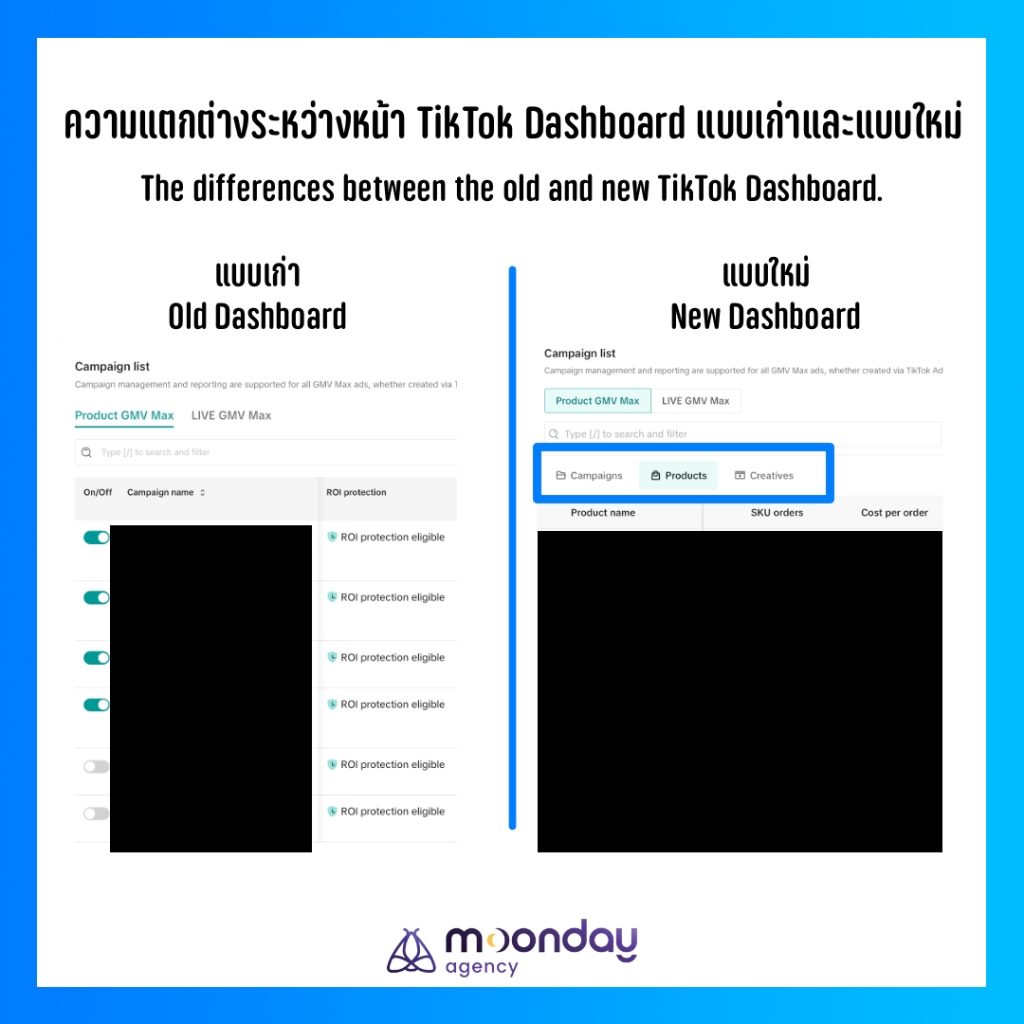
As the screenshot shows, on the old TikTok GMV Max dashboard, the Campaign List section only had two options — Product GMV Max and LIVE GMV Max — followed directly by the list of campaigns you had created.
The updated dashboard is different. Under Campaign List, just below Product GMV Max and LIVE GMV Max, you will now see three clearly separated small tabs:
- Campaigns tab – shows the list of campaigns you have created.
- Products tab – shows all the products you are advertising (or you can filter by campaign).
- Creatives tab – shows every creative used in your ads, including videos from affiliates (creators who tag your products in their videos). You can filter this by campaign as well.
What Can You Do in the Products Tab?
The new Products tab lets you do several things:
- See all your products in one view, more easily than before
Previously, you had to open a campaign and click through several layers of complicated menus. With the Products tab, viewing GMV Max results by product is much easier: one click on the Products tab and you can see every product running in GMV Max ads. - Show products from selected campaigns only, and export them easily
You can pick specific campaigns and view only the products inside them. This makes it easier to review the products you are advertising, and easier to build reports, because you can export the data as an .xlsx (Excel) file.
What Can You Do in the Creatives Tab?
The Creatives tab has also become more capable. For example:
- See all your GMV Max creatives in one click
There was already a Creatives button in the left-hand menu, but the new Creatives tab is easier to use because the page doesn’t reload — you stay on the same dashboard. You can also choose to view only certain creatives from certain campaigns. And of course, besides viewing the data, you can export it to make reporting easier. - Boost the creatives you choose and add budget to specific products
Just select the campaign you want, click the Creatives tab, and choose the creative you want to put extra money behind. Before, you had to dig very deep to do this — so deep that many people didn’t even know you could boost at the creative level. You can also select several creatives and boost them together, and set a daily budget and a duration. It’s a feature that makes managing ads much more convenient.
How Can You Use GMV and ROI Data for Each Product and Each Creative?
Quick definitions: GMV (Gross Merchandise Value) is the total value of sales. In GMV Max, ROI is the sales value you get back for every 1 baht of ad spend — an ROI of 5 means ฿5 in sales for every ฿1 spent.
- Move more budget to the products or creatives that deliver strong GMV and ROI
With GMV Max, you usually create one campaign and add many different products to it, because TikTok’s system picks which products to promote based on which ones can generate the most GMV and ROI. But if you notice that one product’s GMV and ROI clearly stand out from the rest, you can move that best-seller into its own separate campaign. That way, the budget goes only to the best product you have selected instead of being shared with other products, which leads to better results.
Another option is to boost creatives individually. This isn’t new, but moving the Creatives tab onto the main dashboard makes boosting far easier. The method is simple: check which creatives generate high GMV with a high ROI to match, and consider giving them more budget. This puts your ad money exactly where your best-performing creatives are. - Make reporting easier — for example, tracking which products sell best each month
Some shops sell a large number of products. Even when the products are similar and in the same category, sales still differ from month to month: some sell best early in the year, others toward the end of the year — and these patterns tend to repeat every year. Once you have a year of data, you can break it down by product and see which products sell best in which months. Then, when you plan your monthly budget, you can put the money behind the products expected to sell well in that period. No more guessing.
Some Shops May Not See the Products and Creatives Tabs Yet Because the Update Is Rolling Out Gradually
From what Digital Break Time has seen across many client accounts in Thailand, the Products and Creatives tabs have not reached every ad account at the same time. Some shops already have the new dashboard, while others don’t yet. It’s likely that all accounts will switch to the new version soon. If you haven’t received the update yet, don’t worry — it shouldn’t be long.
This update doesn’t change how GMV Max works. What it does change is that you can now view data by product and by creative, decide what to boost, and build reports — all from one page. One thing to watch out for: the GMV and ROI figures you see also include organic sales and affiliate sales, not just sales from paid ads. So look at them together with your other data before deciding to increase or cut your budget.
TikTok Ads and GMV Max keep getting new features and keep improving, which makes advertising easier and easier. It’s clear that TikTok is investing seriously in its advertising platform. If you run a business in Thailand and would like Digital Break Time to manage your TikTok ads, call +66 61-324-5949 (061-324-5949 from a Thai number) or add our LINE Official Account: @digitalbreaktime.
Frequently Asked Questions about the TikTok GMV Max Dashboard
What is TikTok GMV Max?
TikTok GMV Max is an automated ad campaign type for TikTok Shop that aims to maximize total sales value (GMV). It automatically decides which products and videos to show — including your own posts and affiliate videos — based on your budget and ROI target.
Where are the Products and Creatives tabs in GMV Max?
They are on the main GMV Max dashboard, under Campaign List, just below Product GMV Max and LIVE GMV Max, next to the Campaigns tab.
Do GMV Max sales figures include organic and affiliate sales?
Yes. Orders for the products you advertise are attributed to GMV Max even when they come from organic content or affiliate videos, so check other data before changing your budget.
Why can’t I see the Products and Creatives tabs?
TikTok is rolling out the update gradually, so some ad accounts get it before others. If you don’t see the tabs yet, your account should receive them soon.
Can I boost a single video in a GMV Max campaign?
Yes. Select the campaign, open the Creatives tab, choose one or more creatives, then set a daily budget and duration for the boost.
Follow Digital Break Time
Facebook, X, Line Official Account, Instagram, Spotify, YouTube, Apple Podcast
Originally in Thai. Translated to English with the help of Claude.